
Customize the website widget
You can make the widget look like your site and sound like your team. Its colors, logo, button text, corner, greeting, and interface wording are all settings in the dashboard. You set them once, and the snippet on your site never changes. The launcher reads the current settings every time a page loads, so an edit reaches visitors within about a minute without anyone touching the site.
Most of the controls are on the agent’s Web chat page, under its Channels section. Look, Wording, Footer, and Privacy notice apply to both places the chat runs, the public link and the website widget. The Website widget block below them holds what only your site needs: the button, its position, and the greeting bubble. A live preview beside the form redraws as you edit, and the page saves on its own.
Two settings live elsewhere because they shape the conversation itself. The agent’s opening message is on its Profile, and the follow-up questions it suggests after an answer belong to its retrieval settings. Both are covered below.
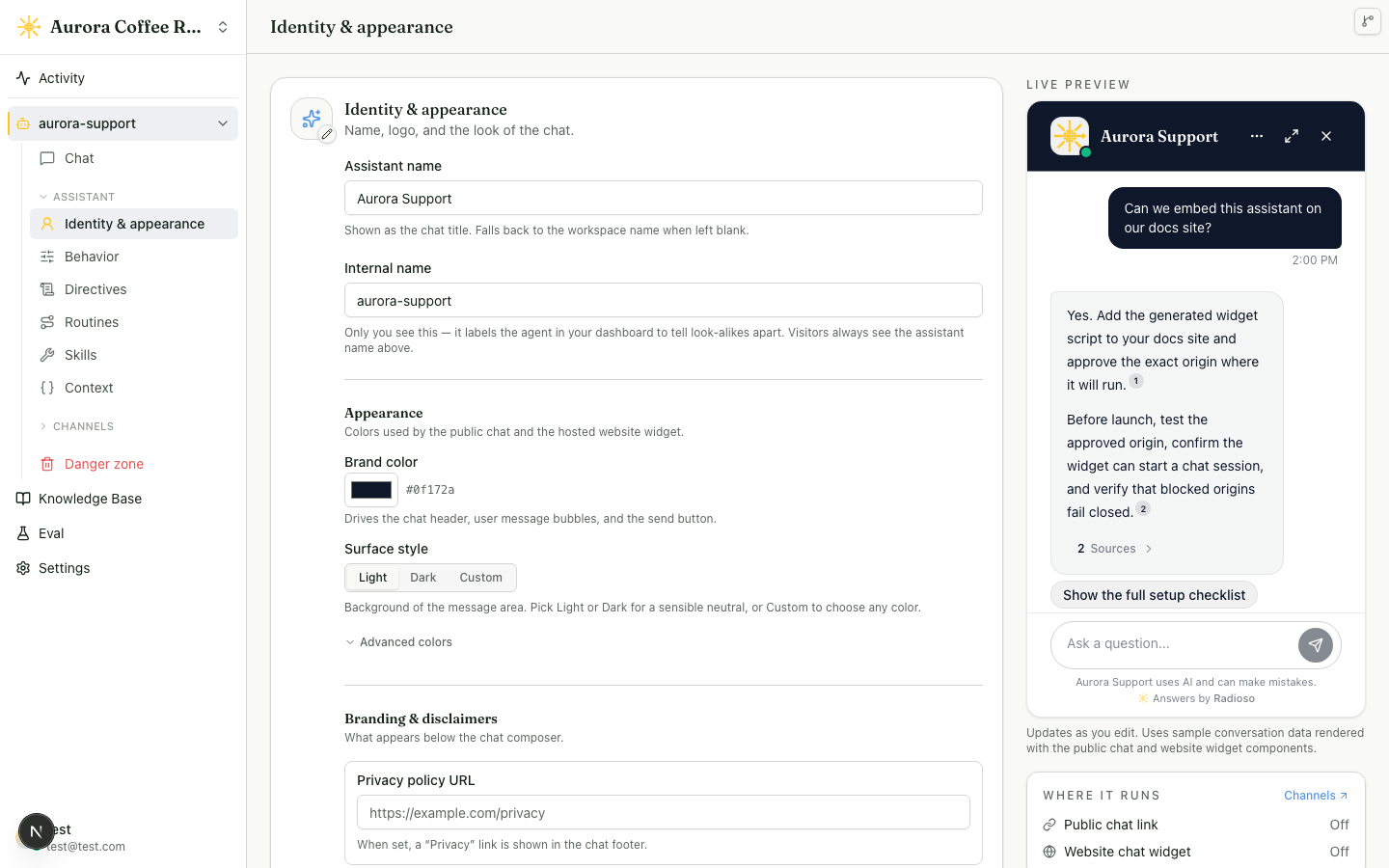
The running example is Acme Outdoor. It wants the widget in its teal, #0f766e, in the bottom-left corner where it clears the site’s cookie banner. The button should say “Ask Acme”, and the chat should open with a greeting and three starter questions.
Match your brand colors and logo
Look holds the logo and the colors. Upload your logo under Logo and it becomes the agent’s avatar on the launcher button and in the chat.
Brand color fills the chat header, the visitor’s message bubbles, the send button, and the launcher button. Links in the agent’s answers take it too, darkened or lightened just enough to read on the chat background, so a pale brand color still gives readable links. Acme sets it to #0f766e. Surface style colors the message area: Light, Dark, or Custom for any color you pick. Radioso picks the two text colors, Text on brand color and Text on chat background, for contrast. If your brand guide names exact text colors, set them under Advanced colors.
Over the API, these four colors are the agent’s theme, with the fields brand, brandText, surface, and text. A new agent starts at #0f172a, #f8fafc, #ffffff, and #0f172a.
Move the button and change its text
The Before the first message block in Website widget decides what visitors see on your pages before they open the chat.
| Control | What it does |
|---|---|
| Display mode | Bubble puts a round chat button in a corner of every page. Side panel puts a slim tab on the side of the page instead, and tapping it slides out a tall chat panel. |
| Button text | The words on the bubble, up to 80 characters. Leave it blank for an icon-only button. With a side panel the field becomes Tooltip text, which shows when a visitor hovers the tab. |
| Where to show it | Bottom-right corner, the default, or Bottom-left corner. With a side panel the field reads Which side, with Right edge or Left edge. |
| When a page loads | Stay closed until visitor opens it, or Open chat automatically. |
| What the assistant knows about the page | Just the page title and address, or Everything visible on the page. The second lets the agent answer questions about what the visitor is reading. |
The default button text is “Chat with us”. Left at that, it appears in the visitor’s own language from the built-in translations. Text you type yourself shows exactly as you wrote it.
Get visitors’ attention adds two options for a bubble. Animation style sets a small motion on the button: Breathe, Pulse, Nudge, or Bounce in. It stops once the visitor opens the chat. Collapse on scroll shrinks the button to its icon once the visitor scrolls past about a fifth of the page and expands it again when they scroll back up. Collapse on scroll is on until you turn it off.
Acme picks Bubble, types “Ask Acme” as the button text, and chooses Bottom-left corner.
Set a welcome message and suggested questions
What people call a welcome message is one of three things in the widget, and each one has its own setting.
The greeting bubble beside the button
Greeting message, under Get visitors’ attention, is a small speech bubble that pops up above the chat button. Left blank, it reads “Hi! How can I help?”, or its built-in translation for the visitor’s language. Show greeting after sets how many seconds the page has to be open before the bubble appears, 4 by default.
The bubble appears only while the agent’s Proactive first greeting is on. While it’s off, the field is greyed out and a link takes you to the switch.
The agent’s first message in the chat
On the agent’s Profile, under Answers, turn on Proactive first greeting. A new chat then opens with a message from the agent instead of an empty panel. Greeting wording decides what that message says:
- Automatic lets the agent write a greeting for each conversation.
- Exact words sends your text word for word, in each language you write it in, with no model call. This is where you add starter questions: up to five Suggestion chips below the greeting. A visitor taps one to send it as their first message.
Greeting wording is part of the agent’s draft. Choose Save draft, and visitors see the new wording once you publish with Review & publish. Exact words covers languages, chips, and the limits.
Until a conversation has its first message, the panel shows the Empty-state title and Empty-state message from Wording. Their defaults are “Start a conversation” and “Ask a question and get an AI-powered answer.” If you’d rather not open with a greeting, put a short welcome line there instead.
Acme turns on Proactive first greeting and picks Exact words. It writes “Hi, I’m Acme’s assistant. Ask me about orders, returns, or sizing.” and adds three chips: “Track my order”, “Start a return”, and “Find my size”.
Suggested questions after each answer
After an answer built from your documents, the agent can offer follow-up questions as chips. A visitor taps one to ask it. These are written fresh for each answer from the material the agent retrieved, so you don’t author them. They’re on by default, three per answer, and you can set any number from one to four.
These chips belong to the agent’s retrieval answer, not to the widget. The Web chat preview shows them, but the page has no switch for them. To turn them off or change how many appear, ask Ray, or set suggestedQuestionsEnabled and suggestedQuestionsCount in the agent’s retrieval skill settings over the API. See Retrieval skill settings. For a fixed set of questions you write yourself, use Exact words chips on the greeting.
Change the wording and add translations
Wording holds the visitor-facing text around the conversation. A blank field uses the built-in text, which appears as the placeholder.
| Field | Built-in text |
|---|---|
| Header subtitle | Ask questions and get AI-powered answers |
| Empty-state title | Start a conversation |
| Empty-state message | Ask a question and get an AI-powered answer. |
| Composer placeholder | Ask a question… |
| New chat button | Clear chat |
| Contact-human button | Talk to a human |
| Contact-human message | I want to talk to a human. |
| Disclaimer | {name} uses AI and can make mistakes. |
| AI chip | AI |
| Privacy notice link | Privacy policy |
| Full-screen button | Open full screen |
| New-tab menu item | Open in new tab |
| Agent-unavailable message | This assistant isn’t available right now. Please try again later. |
The widget picks a language from the visitor’s browser. Spanish, French, German, Italian, Portuguese, Dutch, Polish, Chinese, Japanese, and Russian are built in. Add a translation creates a pack for one language code, such as it or fr-CA, so you can change the wording for that language. A visitor gets the pack for their exact language first, then the one for its base language, so fr-CA falls back to fr.
Footer holds your privacy policy URL, shown as a “Privacy” link below the composer. In Enterprise Edition builds it also has Hide “Answers by Radioso”, which removes the attribution line. Any build can set the same flag, branding.hidePoweredBy, on the agent over the API. Privacy notice holds the line and policy link a visitor sees before their first message. Embed on your website explains how the widget shows that notice.
When changes reach visitors
You never redeploy the snippet to change how the widget looks or reads. Each page load fetches the widget’s settings from your Radioso app host. The host keeps a site’s settings for 30 seconds, and the visitor’s browser keeps its copy for up to a minute. Most edits therefore show up for a visitor within about a minute and a half, and a hard refresh on your own computer shows them sooner.
If you’ve put a CDN in front of the app host, it can hold the settings for up to five minutes. Invalidate its cached embed-config after a change you want out sooner.
Greeting wording works differently. It’s part of the agent’s published revision, so it reaches visitors when you publish the agent, not when you save the draft.
Override one page from the snippet
Sometimes one page should differ from the rest, such as a pricing page where the chat opens on its own. Attributes on the script tag override the dashboard for the page that carries them:
<script
  async
  src="https://your-frontend.example.com/radioso-embed.js"
  data-radioso-token="wksp_embed_REPLACE_WITH_YOUR_TOKEN"
  data-radioso-initial-state="open"
  data-radioso-launcher-position="bottom-left"
  data-radioso-launcher-label="Questions about plans?"
></script>
The attributes the launcher reads:
data-radioso-launcher-labelanddata-radioso-launcher-position(bottom-rightorbottom-left).data-radioso-display-mode(bubbleorpanel) anddata-radioso-initial-state(collapsedoropen).data-radioso-theme, a JSON object of colors for parts of the widget, such as{"launcherBackground":"#0f766e","userBubbleBackground":"#0f766e"}.data-radioso-copy, a JSON object of wording keys, such as{"publicChatEmptyTitle":"Ask Acme anything"}.
An attribute on the snippet beats the dashboard for that page. If a change you made on the Web chat page doesn’t show on one page, check that page’s script tag first.
Build your own chat UI
If the settings don’t go far enough, build the chat interface yourself and keep Radioso behind it. The browser-side path is the public chat API: a page creates a public session from the launch token, then sends messages. It also gets the agent’s greeting, suggestion chips, and reply cards, the same pieces the widget draws. From your own server, a REST-audience agent credential calls POST /api/v1/agents/{agentId}/chat (Chat and history). The TypeScript SDK covers the workspace API for scripts and backends, including agent settings such as theme.
Common failure modes
- The greeting bubble never appears. Proactive first greeting is off on the agent’s Profile, so the bubble is switched off with it.
- The new greeting wording doesn’t show. It’s saved to the draft but not published yet. Publish the agent with Review & publish.
- A color or wording change shows on most pages but not one. That page’s script tag carries a
data-radioso-*attribute that overrides the setting. - A change hasn’t appeared after a few minutes. A CDN in front of the app host is still serving the old
embed-config. Invalidate it. - No follow-up chips after an answer. The chips come only with answers built from your documents. If they never appear,
suggestedQuestionsEnabledis off for the agent. - Your translation isn’t used. The pack’s language code doesn’t match the visitor’s browser language or its base language. Use the short code, such as
it, unless you need a regional variant.
Read next
- Install the widget on a site builder: paste the snippet into Wix, Shopify, Webflow, Squarespace, WordPress, or Google Tag Manager.
- Exact words: write the greeting and its suggestion chips word for word.
- Embed on your website: allowed origins, the privacy notice, and analytics events.