
Author a routine
A directive steers one turn. A routine carries a flow across many turns: it can collect values, call a skill, take a branch, and finish or hand off to a person. Use a routine for an order-issue intake, lead capture, or refund check.
In an agent’s Routines settings, choose New routine to start one, or select an existing routine to open the editor.
The routine document
The editor presents the routine as a document: the flow as readable instructions, with typed controls at each decision. The engine compiles it into the graph it runs, so you work with the routine instead of drawing the graph.
Every change saves into the agent’s private draft as you make it, so the document is always the form a colleague reads to learn what the agent does.
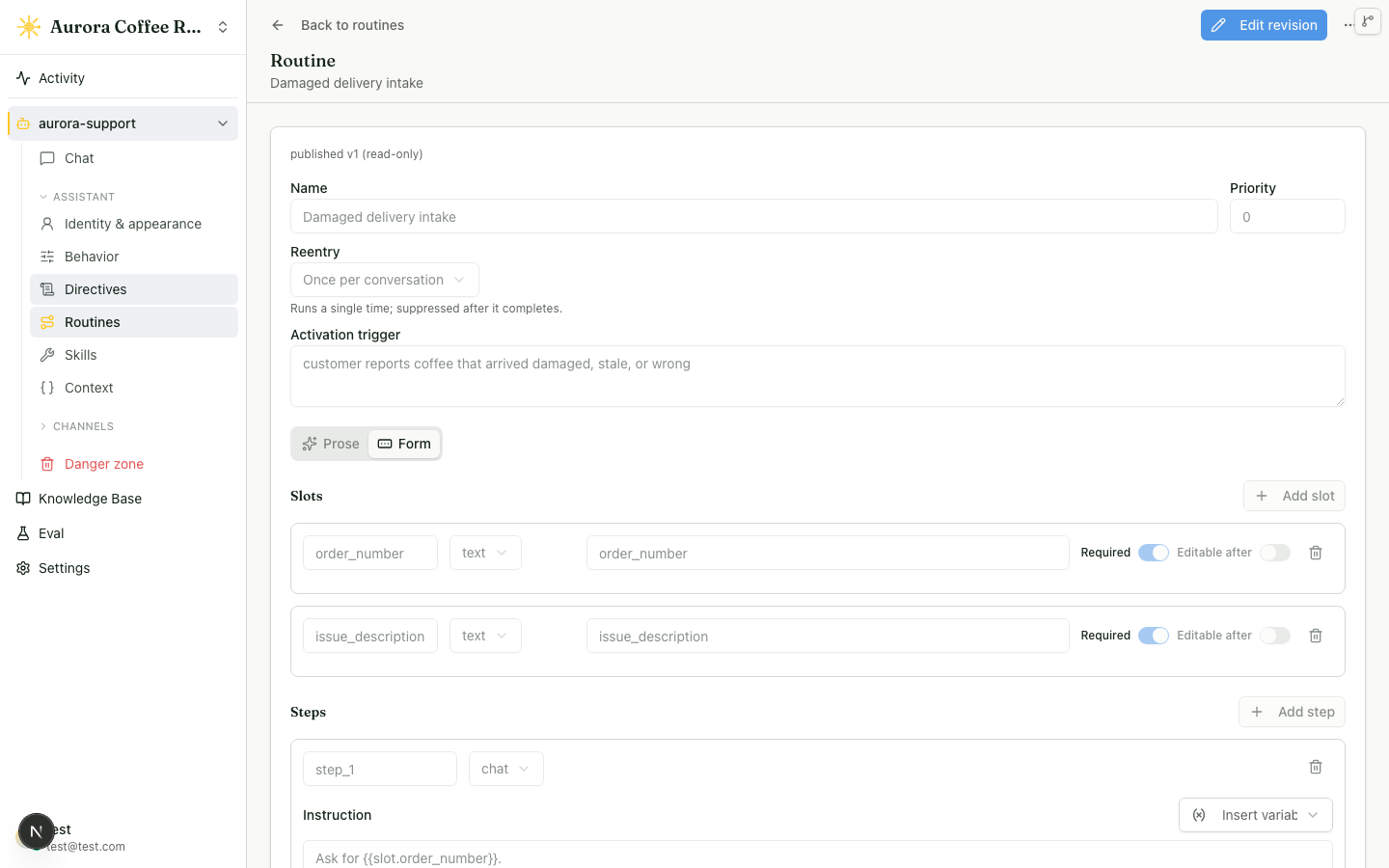
Work in the document
Document opens with a collapsible When to trigger section holding Starts when, followed by Instructions — the numbered steps and their branch rows. Information, Endings, and Completion export sit inside an Endings & information disclosure at the bottom, closed by default. A skill step shows its uses → sets bindings in its step editor, opened from the step’s own token, so the flow also shows where information comes from and goes without crowding the sentence.
Edit the starts-when line directly. In a step instruction, type @ to capture a
value, then choose its type in Information. Use + Step to add chat,
skill, approval, or action steps. Condition rows choose a Rule or AI
decides decision and its target. Ending rows set the message for a completed or
handed-off flow. Delete a step with Backspace in its empty instruction, the
trash next to its reorder arrows on hover, or the step editor panel; a branch
that pointed at it retargets to a new, blank ending.
Validation notes appear beside the row or field that needs attention. They point to issues such as a missing target, an unset required skill input, or a comparison whose value type needs adjustment.
Set the routine header
The routine’s name is the page title — click it and type a new one. A pill beside it reads Draft or Live, and the round button next to the pill switches between them. Test opens the draft in Test Chat, and the overflow menu holds Draft with AI and Delete routine.
Open When to trigger, then Starts when, to set:
- Priority — the tie-breaker when several routines could start at once.
- Reentry — what happens after the routine finishes in a conversation.
- Activation trigger — a plain-language description of when the routine should start.
The trigger is judged by meaning, so write it the way an operator would describe the task: “customer reports coffee that arrived damaged, stale, or wrong.”
You can also select an Answer coverage signal in the activation header. For example, a routine can be eligible when a request is Unanswered because of Insufficient evidence. This is an extra typed condition alongside the trigger. Normal activation, confirmation, and action permissions still apply; recognizing a gap alone does not start an external action.
Reentry
A routine can finish more than once in one conversation. Reentry decides what a later matching message does:
- Once per conversation — the default for one-time tasks such as capturing a lead.
- Every time it matches — for repeatable tasks such as looking up an order.
- Let the assistant decide — the agent chooses whether to resume the run, start a fresh one, or leave the completed run in place.
Expose a routine as a tool
A routine normally starts when its trigger matches what a customer says. An AI agent calling your agent on a customer’s behalf can start it more directly: as a named tool, with the routine’s collected information filled in up front. Open Starts when and switch on Expose as a tool, then give the tool a name and a one-line description that tells a calling agent when to use it.
The name is what the calling agent invokes, so it follows the grammar tool
catalogs expect: 2–63 characters of lower-case letters, digits, and underscores,
starting with a letter — start_return, request_callback. The editor accepts
whatever you type and reports a name outside that grammar as a validation note,
the same way it reports an unreachable step; Review & Publish refuses the
revision until the name is fixed. Two routines on the same agent cannot share a
name, and the names the MCP surface keeps for itself — ask_agent,
radioso_docs, radioso_doc_page, and get_conversation_updates — are refused
as exposure_tool_name_reserved.
Once the agent is published with a tool name, that name stays fixed for the
routine — even while you later switch exposure off — so a calling agent never
finds the same routine under two names. A publish that renames it is refused
with exposure_tool_name_changed. To offer the routine under a different name,
switch its exposure off and create a new routine with the new name.
A routine whose activation has a gate cannot be exposed: a tool call would start it without the gate being checked. Such a routine stays reachable through conversation as before.
What a calling agent sees
Once the agent is published, a calling agent lists the routine as a tool built
from the information the routine collects. Each declared slot becomes one input:
a text slot is a string, number and yes/no slots keep their types, an email slot
is a string that must look like an address, and a date slot is a string that
must be an ISO calendar day (2026-09-01). A slot marked required is required
in the tool; the slot’s description travels with it, so a clear description
helps the caller fill it correctly. A routine with no slots is still a valid
tool — a “request a callback” routine needs nothing up front.
A call with values filled in skips the steps that would have asked for them and lands on the first step that still needs something: a slot the caller left out, an approval, a skill. From there the routine runs exactly as it does in chat, and the reply names the routine, where it stopped, and every slot it still needs. A call that does not match the tool’s inputs is refused before the conversation records anything. Activity shows a tool call as a block with the tool name and the values it carried. The calling agent guide shows the catalog and the call from the caller’s side.
Collect values and add steps
A value is information the routine collects, such as an order number or email.
In Document, type @ in an instruction to add a value like @order_number.
The routine waits at a step that asks for a value, stores the visitor’s reply,
then continues through the flow.
Choose a type — text, number, boolean, email, or date — in
Information. Mark a value Optional when the flow may reach an ending
while the value remains empty, or Editable after completion when a visitor
may correct it later.
The @ menu also lists what the agent already knows about the visitor under
Visitor context. Choose Current page to place it in a step, and the
step reads the page’s URL, title, and language when it runs — enough to write
“If the visitor is on a program page, confirm that is the program they want to
book; otherwise ask which program @program”. A host-defined context variable
the agent has enabled appears in the same list. This is a value the step
reads, not one it stores: nothing is added to Information, so ask for
anything you want to keep with an @ slot.
A blank numbered line always sits after the last step — click it to write a
chat step directly. The + Step menu adds chat, skill, approval, and action
steps. A skill step can use a fixed input or a value the routine holds, then
assign its outputs to values that later steps can read. For example, a refund
lookup can use @order_number and set @refund_status for a later branch.
Set branches, approvals, and endings
Add a condition row beneath a step — the round + under its branches, or
+ Condition in the step’s own editor — to choose its next target: another
step, Finish, or Hand off. Rows run in order. Use Rule for an
exact typed check, skill outcome, filled-value check, or bounded retry. Use
AI decides when the agent needs to judge the condition in the
conversation; type @ in the condition box to reference a collected value.
An approval step pauses the routine for a workspace member. Add it with + Step, name the decision, then give each choice a label and target. The initial Approve and Decline choices suit many flows; a choice such as Ask for receipt can direct the flow to collect more information. The selected choice continues along its decision edge.
An ending row completes the routine with Finish or escalates it with Hand off. Set a message on the ending the agent should deliver. Named endings let different paths provide different completion messages. A Hand off ending also sends the operators the routine’s name and every value it collected, by email, the contact webhook, and Slack, so the person picking the conversation up starts with what the visitor already said.
Validation and publishing
The editor validates as you work. A routine is one of the agent’s scoped editable areas, alongside directives, skills, and context variables. All four share one publication boundary: Review & Publish on the agent snapshots them together into a revision, and that revision serves conversations. So an edit changes what the agent will run after the next Review & Publish, and nothing before it.
A conversation keeps the revision it started on. A visitor part-way through a routine finishes on the version they began with, while you work on the next one.
Each routine also carries an enabled flag — the Draft/Live pill in its header. Switch a routine to Draft to take it out of play while keeping everything you built — useful for comparing agent behavior with and without it, or parking a flow you are still working out.
Try a routine before it ships
Choose Test to open the agent’s Test Chat with the draft selected. The draft holds the routine you are editing alongside the rest of the agent’s unpublished work, so the routine runs turn by turn in that conversation exactly as a publish would ship it, then returns to normal answering when it finishes. The routine has to be Live: one still marked Draft sits outside the draft’s activation set, so Test is disabled until you switch it over.
In Test Chat, you can also compare the draft with the published revision and run selected eval cases. Switching which version you test starts a fresh test conversation, so routine state from one cannot mix into the other. Evals are optional evidence for the publish decision.
Use the test to check the trigger, information collection, skill bindings, branches, endings, and handoffs before you publish the agent.
A private test keeps skills with outward effects off by default, so nothing
sends to a real customer while you work. A tool step that calls an external
MCP tool, a webhook, or a customer email or Slack skill reports failed with
the reason skills are off in this test, and the routine takes its failed
branch, so you can watch that path too. Choose Run skills for real in the
Test Chat actions menu to start a fresh private test where every skill runs
exactly as it would for a customer. Retrieval skills run in both modes, and
test values still stand in for context variables either way. Action steps,
handoffs, and completion export stay off in every private test.
A notify skill delivers through the saved conversation, so it stays off in every private test even with Run skills for real on. Retry re-runs the turn, so a skill the first attempt already fired fires again. Run evals always replays with skills off, and you can only capture an eval case from a test that kept skills off.
Common failure modes
- A routine fails to start: the trigger describes the wrong situation, or a higher-priority routine claims the turn first. Test the trigger with Test.
- A coverage condition does not activate: inspect the originating turn. A failed or unavailable assessment is recorded as not assessed and never activates a coverage condition.
- A step skips value collection: add the value with
@in the instruction so the step refers to the stored information. - A backward jump fails validation: set Max N so the loop has a bounded number of passes.
- A routine never starts at all: check that its pill reads Live, not Draft.
- Review & Publish refuses the agent with
exposure_tool_name_changed: a published tool name is fixed. Keep the name, or switch exposure off and create a new routine under the new name.
Read next
- Author a directive — set the named behavior rule that steers a reply when a situation applies.
- Test your agent in the workbench — chat with your agent and inspect a turn.
- Human takeover — what happens when a routine hands off to a person.