
Test your agent in the workbench
The workbench is where you talk to your agent the way a visitor would — but signed in, with the tools an operator needs. Use Test Chat to check a saved agent candidate before it reaches real conversations. You reach it from an agent’s Test Chat tab.
Test Chat runs the selected immutable agent configuration through the private safe-test execution path. Shared documents, models, skills, and channel settings remain live dependencies, so check those settings when comparing results.
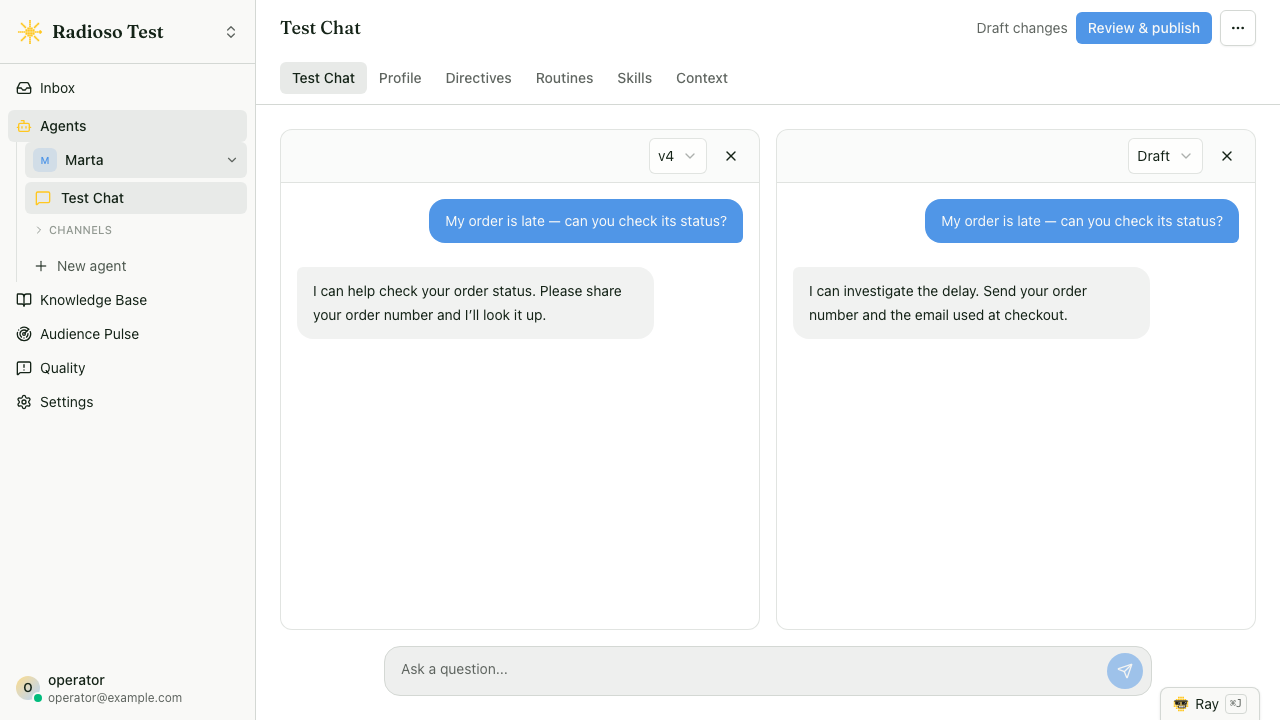
Chat with your agent
Choose a version, type a question, and send it. For example, ask a support agent how long shipping to Germany takes, then check its answer against your shipping policy. Follow up in the same chat to check whether the agent carries context across turns.
If your agent uses context variables, open the three-dot menu beside the title (labelled Test chat actions to assistive technology) and choose Test context. Supply sample values, such as a customer’s plan or locale, to check how they affect the answer. These values belong to the private test and stay with its history. This menu item appears only when the selected versions use context variables.
Skills with outward effects — an external MCP tool, a webhook, or a customer email or Slack skill — stay off by default in a private test. A tool step that would call one reports failed with the reason skills are off in this test, and the routine takes its failed branch, so you can see that path without sending anything real. Choose Run skills for real in the same menu to start a fresh private test where every skill runs exactly as it would for a customer. Retrieval skills run in both modes, and test values still stand in for context variables either way. Action steps, handoffs, and completion export stay off in every private test.
A notify skill delivers through the saved conversation, so it stays off even when you turn skills on. Retry on a failed attempt re-runs the turn, so a skill the first attempt already fired fires again. Run evals from Test Chat always replays with skills off, and you can only capture an eval case from a test that kept skills off.
Test Chat and History
Open the three-dot menu and choose History to reopen a previous test. A comparison reopens both sides together, with the versions and sample values it originally used. Older test sessions without recorded version information keep an explicit label. Your tests stay separate from customer conversations in Activity.
Use the revision selector to choose the saved draft candidate, the current published version, or an earlier published version. Releases are labelled v1, v2, and so on; the saved draft shows the published version it is based on. Saving or testing a draft does not allocate a release number. When the draft cannot be released — a routine step referencing something that no longer exists, for example — the selector offers only published versions, and the reason appears above the chat. Choose Compare versions from the three-dot menu to open two private conversations. Each keeps its selected version, and every message goes to both panes.
When proactive greeting is enabled, opening a fresh Test Chat starts the selected private test and shows the assistant’s first greeting before you type. The configured fallback language applies when the request has no locale. With the setting off, send your first message to start the selected test. If you have unsaved private changes, Save draft & send saves them before sending; a failed save keeps your message unsent. New chat in the same menu clears the current conversation while keeping its history and starts one fresh greeting when the setting is enabled. Changing versions, comparison mode, or sample values prepares a fresh chat for the next message.
You can also start a private test from a real conversation. Open the conversation in Activity and choose Continue in test chat: Test Chat opens with that customer’s thread already in place and picks up wherever the conversation stands, including a routine that is part-way through, so your next message continues it against the version you select. The customer’s conversation stays untouched, the test does not send its greeting again, and a seeded test is always a single version, never a comparison.
Choose Evals from the three-dot menu to select existing eval cases and run them against the selected versions. Results keep the revision and sample context they tested, so changing the selector does not relabel older evidence. Detailed case authoring and run history remain in Evals.
For a retrieved answer, diagnostics also separates Answer coverage from retrieval and citation facts. It shows whether the request was answered, partly answered, unanswered, or needs clarification, along with the recorded reason. When a coverage rule was evaluated, the trace shows its directive or routine decision and links back to the originating message; an activated routine also links to its execution. Not assessed means no semantic verdict was recorded, so it is never treated as an answered request.
Inspect earlier workbench sessions
History also keeps sessions recorded through the conversation workbench. Open one to inspect its transcript and available turn diagnostics. When that workbench offers Save this turn as an eval, you can capture an answer as a reference and continue in the eval editor.
Saved revision tests reopen in Test Chat with their recorded versions and messages. Use the existing cases in the Evals dialog to check the selected versions; detailed case authoring remains in Evals.
Common failure modes
- A weak answer after uploading a document can mean processing is still running. Check the document’s status before comparing answers.
- If a draft save fails, your message stays unsent. Resolve the save error and try again.
- If one comparison side fails, retry that side to retain the successful answer from the other version.
- Look for private tests in History; customer conversations remain in Activity.
Read next
- Evaluate answer quality — turn a captured turn into a repeatable check.
- Author a routine — build a multi-step flow, then test its draft in a live chat.
- Human takeover — take over a real conversation from the AI.