
Author a directive
Use a directive when you want the agent to handle one kind of conversation in a particular way. For example: when a customer sounds anxious, slow down, confirm what they need, and do not rush them into a choice. The rule stays separate from the agent’s general persona, so you can see, change, and test it on its own.
A directive steers a reply. It is not a procedure and it does not perform an action. Use the agent’s Behavior for a voice or rule that belongs on every answer; use a routine when the request needs a sequence of steps, collected information, or an action such as a Slack post.
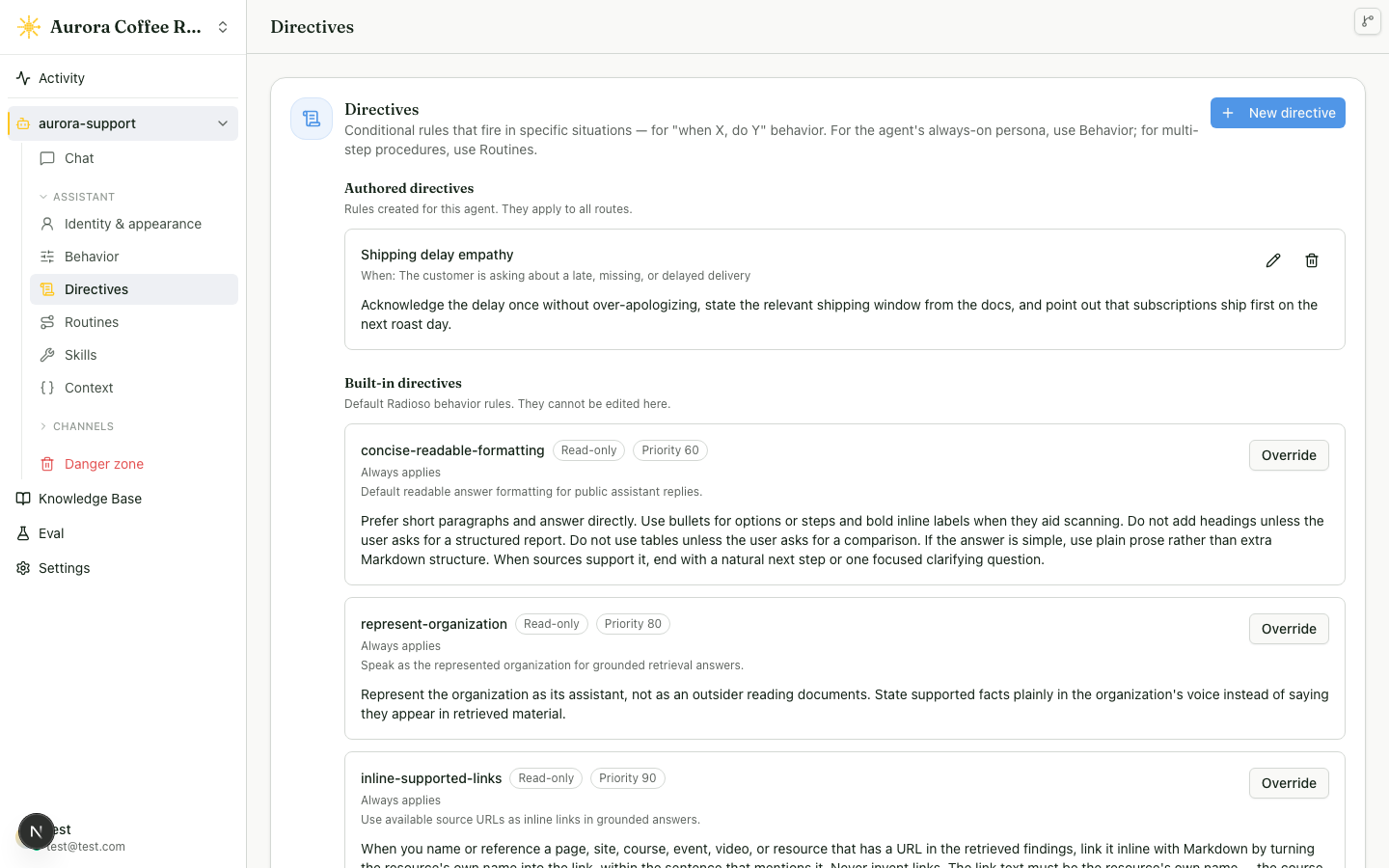
In an agent’s Directives tab, choose New directive. Your edits are saved to the agent’s private draft. The draft is the version you test; it becomes part of visitor conversations only when you choose Review & Publish and publish it.
Describe the rule
Give the directive a short Name that helps your team recognize it later,
such as Anxious customer. Then choose When this applies:
- Always applies the instruction to every reply. Use it for a rule that is narrower than the general Behavior, but still needs to be visible and independently managed.
- In a specific situation opens Situation. Describe the circumstance in plain language, such as “the customer sounds worried about a missed delivery.” Radioso matches the situation by meaning, so describe the situation rather than trying to anticipate exact phrases.
In Instruction, say how the agent should reply when the rule applies. Keep it concrete: “Acknowledge the delay, state only what the order data supports, and offer the next useful step.” This is guidance the agent follows, not a message it repeats word for word. Press Enter to break the instruction across lines when a rule reads better as two or three of them; the breaks are part of what the agent reads.
React to answer coverage
Use Answer coverage signal when the rule should apply only after the agent has assessed whether the available workspace evidence answered the request. Choose values such as Partly answered, Unanswered, or Needs clarification, and optionally narrow them by reason. The directive then steers the reply in that same turn. A coverage signal does not change whether citations are valid and does not make a routine run.
Know which rules share the contextual allowance
An Always directive is included on every reply without using the allowance for situation-specific rules. When its dependencies also match, that dependency chain stays with it outside the allowance. This keeps standing requirements in force even when several other directives match the same message.
For In a specific situation directives, Radioso ranks the matches using their confidence and priority. It includes up to eight contextual directives whose combined instructions fit within an estimated 2,400-token allowance. Matches beyond either limit are held back and recorded in the turn trace.
If an expected contextual directive is held back, make its Situation more specific or raise its Priority relative to the rules it competes with. Use Always only when the instruction genuinely belongs on every reply; it is a standing requirement, not a way to win contextual ranking.
Decide how it fits with other rules
Priority orders guidance when two matching directives disagree. It is a best-effort ordering for the agent rather than a way to remove another rule. A blank value is 50. The built-in answer directives are currently ranked at 90 for supported links, 80 for representing the organization, and 60 for concise, readable formatting. Set a whole number from 0 to 100 when your rule needs to land above, between, or below those rules.
Use Replaces when another directive must be absent while this one applies. It removes the selected directive from that reply, which is stronger than priority. Each built-in directive also has an Override button; it starts a new directive with that built-in already selected in Replaces. Use the shortcut when you need to author a replacement for a built-in, then finish the name, condition, instruction, and priority yourself.
Turn a rule off
Every authored directive has a switch on its row in the directive list. Turn it off to take the rule out of play immediately, without losing its name, condition, or instruction. This is the fastest way to confirm that a rule is the source of a bad reply before you rewrite it, or to compare an agent’s answers with and without it. A disabled directive stays in the list, marked Disabled, so you can find it and turn it back on.
This is different from Replaces, which redirects one specific built-in to your directive rather than switching anything off, and from deleting the directive, which discards the name, condition, and instruction for good. When you are not sure a rule should go away permanently, turn it off first.
Add a skill only when it helps answer
Most directives do not need a skill. The instruction is the rule. If a matching
reply needs an MCP tool or an extra pass over your knowledge, type # in the
Instruction field and select an enabled, agent-selectable skill. A directive
can have one such binding: it makes the skill available for the reply when the
directive matches.
Why can’t I bind a Slack, email, webhook, or notify skill?
Those skills act outside the conversation and settle with an action result, not with the text the visitor should see. A directive needs a skill that can produce or inform that reply, so the editor offers MCP tools and knowledge retrieval instead. The message “Acts instead of replying. Use it in a routine step.” is a pointer to the right surface, not an error in your Slack configuration.
For example, if a customer asks for a manager to follow up, create a routine whose activation describes that request. Add a Slack Post step to the routine, then set the routine’s completion message to tell the customer what will happen next. You can also keep a directive for the same situation when its job is to shape the reply — for example, “Do not promise a response time.” The routine posts; the directive steers.
Test and publish the rule
Choose Save draft, then open Test Chat from the agent cockpit and try an example that should match. Inspect the turn’s Directives node to confirm the rule applied and to see how it shaped the answer. Try a nearby example that should not match as well; a specific situation should not accidentally become a standing rule.
Test Chat pins each conversation to the saved candidate you selected. Later draft edits stay private and do not change an earlier test. You can compare the draft with the published revision and run selected eval cases from Test Chat before publishing. Evals help you decide; they are optional, while validation and the explicit publish action are required.
When the rule is ready, choose Review & Publish. Review the directive changes and the test evidence, then publish the candidate you inspected. Keep making edits in the draft after publishing when you want to prepare another change. The published revision is shared by newly started conversations across the agent’s channels; an ongoing conversation keeps the version it started with.
Common failure modes
- The rule applies too broadly: make Situation describe the customer state or request that should trigger it, rather than a topic word.
- A built-in rule still affects the answer: use Replaces or Override if it must be removed; priority only orders competing guidance.
- A contextual rule matched but did not shape the answer: inspect the turn trace for a count or token-limit reason, then narrow its Situation or raise its Priority relative to the other contextual rules.
- An answer-coverage rule did not run: open Turn diagnostics and check whether coverage was assessed. Older turns and failed assessments have no semantic verdict to match.
- Slack, email, webhook, or notify does not appear after
#: add it as a routine step. It acts, rather than producing the reply a directive needs. - A selected skill is unavailable: enable it and set its invocation mode to Agent selectable, then reopen the directive.
- Not sure whether a directive is the cause of a bad reply: turn it off with the row switch and retry the conversation, rather than guessing from the instruction text.
Read next
- Author a routine — build the multi-step flow that collects information or takes action.
- Test your agent in the workbench — exercise a directive in a live conversation and inspect the result.